Do you find yourself mindlessly scrolling through social media or watching videos on your smartphone after getting into bed? You are definitely not alone if you've ever thought, "Oops, an hour just flew by," or found yourself tossing and turning despite being exhausted.
In reality, looking at your smartphone screen at night degrades your sleep quality far more than you might think. The primary culprit behind this is blue light.
In this article, we will break down the scientific mechanism of how blue light disrupts your sleep and share practical, actionable nighttime tips you can start using tonight.
🔬 The Science Behind How Blue Light Disrupts Sleep
Our bodies regulate daily biological activities based on a roughly 24-hour internal clock known as the circadian rhythm. A crucial hormone governing this internal clock is melatonin (the sleep hormone).
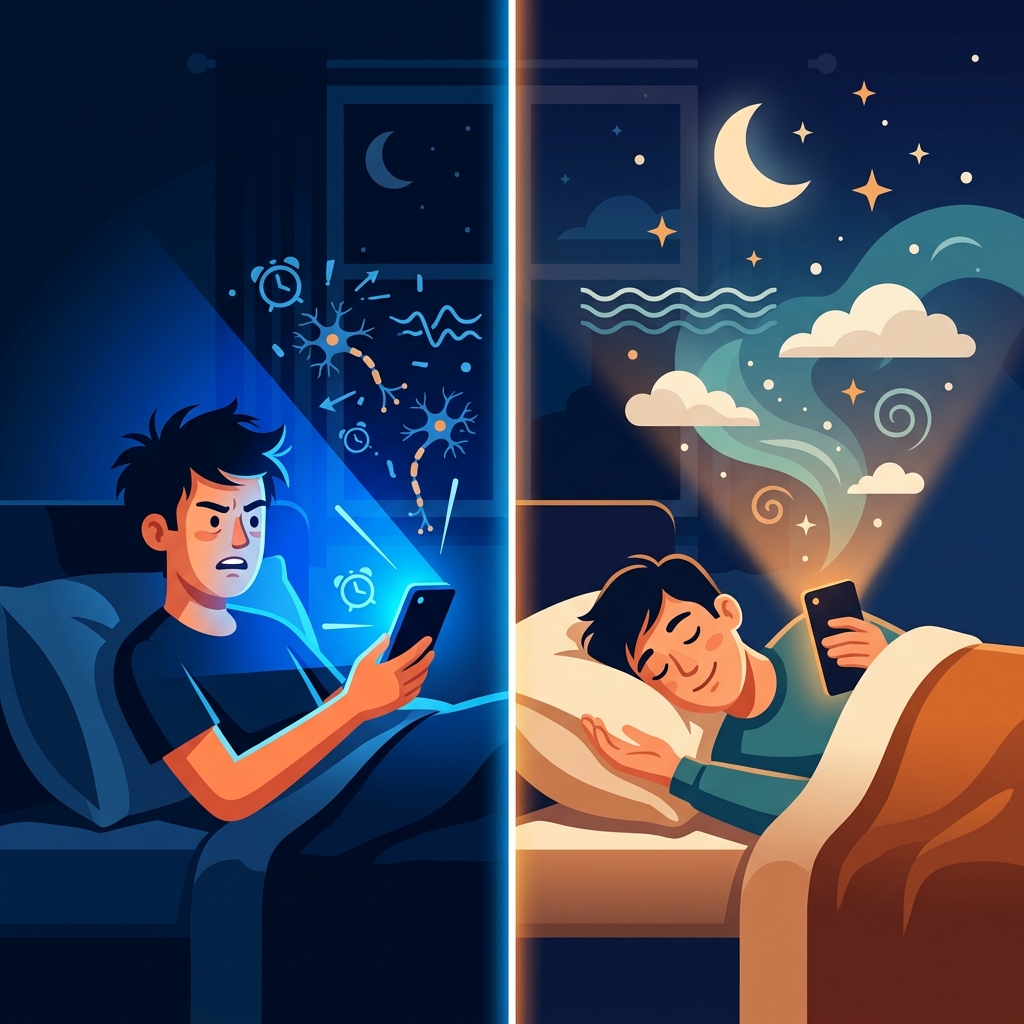
Melatonin is released by the brain from evening into the night, lowering your core body temperature and inducing natural sleepiness. However, when your retinas detect blue light (blue-colored light with wavelengths between 380 and 500 nanometers), your brain mistakenly thinks it is daytime and aggressively suppresses melatonin production.
📊 Key Negative Impacts of Blue Light
- Difficulty Falling Asleep (Sleep-Onset Insomnia): Reduced melatonin levels significantly delay the time it takes to feel sleepy.
- Reduction in Deep Sleep (Non-REM Sleep): The overall quality of your sleep drops, making you more prone to waking up in the middle of the night.
- Morning Fatigue: Even if you get enough hours of sleep, you may wake up feeling groggy, unrefreshed, and physically heavy.
💡 5 Nighttime Blue Light Solutions You Can Start Tonight
To improve your sleep quality, here are five practical solutions you can put into action starting tonight.
1. Put Away Your Phone 1 to 2 Hours Before Bed
The most ideal approach is to go digital-free before getting into bed. Try replacing screen time with relaxing habits that soothe your mind and body, such as reading a physical book, stretching, or sipping warm herbal tea.
2. Dim Your Room Lights to Warm Tones
Cool white fluorescent lights also emit a significant amount of blue light. Switching your room lighting to warm-toned (incandescent-style) indirect lighting or dimmer lamps after 10 PM helps encourage natural melatonin secretion.
3. Keep Your Phone at Least 30 cm Away from Your Eyes
The closer the screen is to your eyes, the higher the intensity of blue light entering your retinas. Make a conscious effort to extend your arms and maintain a distance of at least 30 cm (about 12 inches) when using your device.
4. Enable Android's Built-In "Night Light" Mode
Android devices come equipped with a built-in feature—often called "Night Light," "Eye Comfort Shield," or "Reading Mode"—that shifts your screen's color temperature to warmer tones.
- How to set it up: Go to Settings ➔ Display ➔ Turn on Night Light (or Eye Comfort Shield) and set a schedule (such as sunset to sunrise).
5. Use a Dedicated Blue Light Filter App (Recommended)
While built-in night modes are convenient, they often come with limitations, such as a narrow range of color adjustments or an inability to dim the screen beyond a certain threshold. To maximize your sleep quality and minimize eye strain, we highly recommend using a dedicated app designed to reduce eye fatigue to the absolute minimum.
📱 Protect Your Sleep Quality with "Blue Light Filter - Night Mode"
If you find it hard to completely give up nighttime smartphone use, our free Android app, "Blue Light Filter - Night Mode", is the perfect solution.
🌟 Why Choose "Blue Light Filter" Over Built-In Settings?
| Feature | Android Built-In "Night Light" | Blue Light Filter - Night Mode (Our App) |
|---|---|---|
| Color Customization | Basic yellow to orange tones only | Choose from 7 colors, including sepia and natural warm tones |
| Fine-Tuning Filter Rate | Simple slider with limited range | Block blue light down to the exact percentage (1% increments) |
| Auto-Schedule | Time-based scheduling only | Equipped with a "Full Auto Mode" that syncs with ambient brightness |
| Battery Impact | Standard | Ultra-lightweight and energy-efficient design for outstanding battery life |
Using advanced filtering technology, "Blue Light Filter - Night Mode" effectively blocks sleep-disrupting blue light without sacrificing screen readability or text clarity. Best of all, it is incredibly simple to use with just a single tap.
Try turning on "Blue Light Filter - Night Mode" tonight and experience the difference in how refreshed you feel tomorrow morning!
❓ Frequently Asked Questions About Blue Light and Sleep (FAQ)
Q. Which is better: blue light glasses or a filter app?
A. We highly recommend using an app for its convenience and effectiveness. Glasses require an upfront purchase and can be uncomfortable to wear when lying down in bed. An app, on the other hand, is completely free and automatically adjusts your entire screen to eye-friendly tones without any physical hassle.
Q. Doesn't the screen look too yellow and hard to read with the filter on?
A. It might feel a bit unusual for the first few minutes, but your eyes will adapt very quickly. "Blue Light Filter - Night Mode" is designed to reduce blue light while maintaining high text contrast. Reading news articles or e-books in sepia tones actually makes reading much easier on the eyes. In fact, you will likely realize just how harsh and blinding your screen's default brightness used to be.
Q. Does running a filter app drain the battery?
A. No, our app is engineered to be extremely lightweight and consumes virtually no extra power. By completely eliminating unnecessary background processes and data transmissions, it offers outstanding battery life compared to other blue light filter apps on the market.