In today's modern society, we sit in front of computers all day for work and continue staring at our smartphones during commutes and personal time. By evening, do you find yourself suffering from symptoms like stinging or painful eyes, difficulty focusing on distant signs (temporary smartphone presbyopia), or dry eyes?
This chronic eye fatigue is known as "eye strain" (asthenopia). If left unaddressed, it is known to lead to broader physical issues, including headaches, stiff shoulders, irritability, and sleep disorders.
In this article, we will introduce the "20-20-20 rule"—an incredibly simple and effective eye self-care method recommended by ophthalmologists worldwide—along with ways to customize your smartphone settings to be gentler on your eyes.
👁️ What is the "20-20-20 Rule" Recommended by Ophthalmologists Worldwide?
When we stare closely at a screen (smartphone or PC), the ciliary muscles—which adjust the focus of our eyes—remain constantly tense and contracted. Additionally, because intense focus reduces our blink rate by about two-thirds, it easily triggers dry eyes.
To relieve this tension, organizations like the American Academy of Ophthalmology (AAO) recommend the "20-20-20 rule."
🕒 How to Practice the 20-20-20 Rule
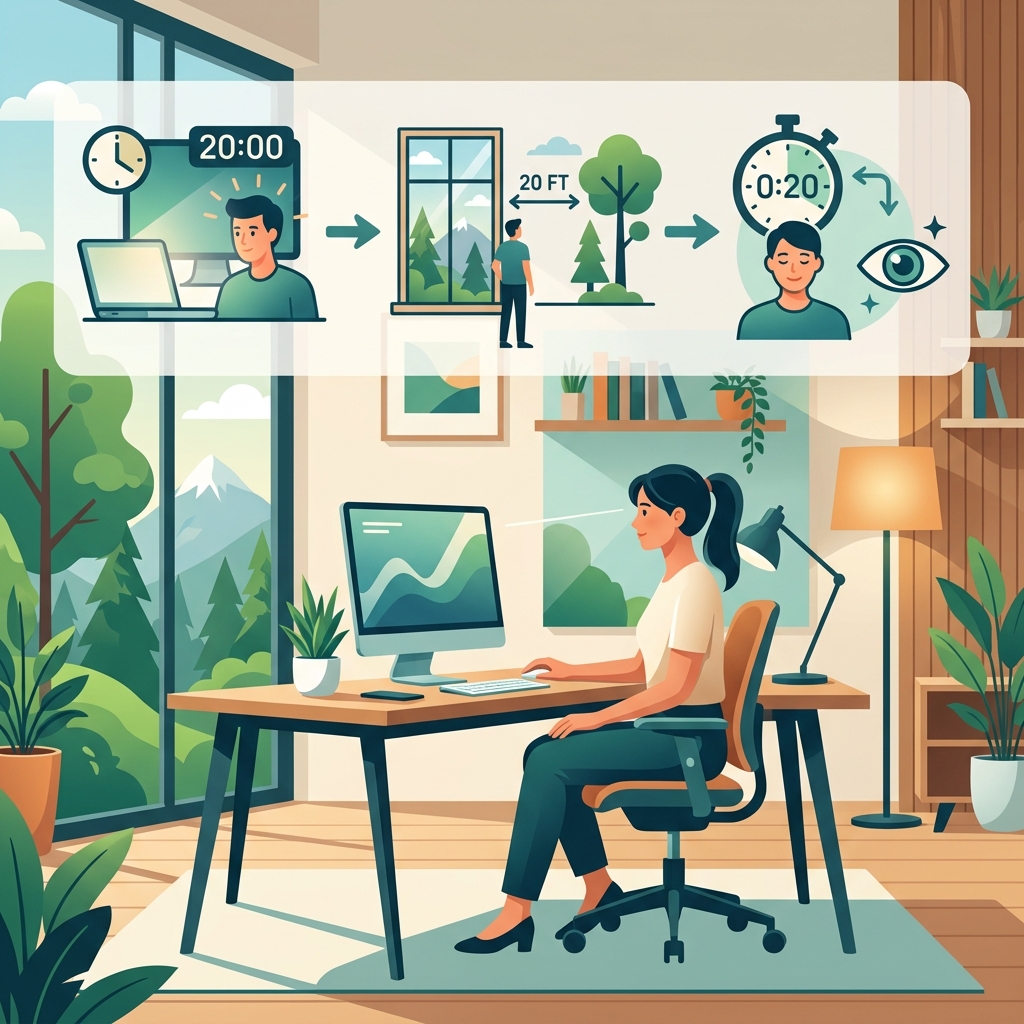
The rule is extremely simple:
- After looking at a screen for 20 minutes,
- Look at something at least 20 feet (about 6 meters) away,
- For at least 20 seconds to rest your eyes.
💡 Why Does It Work?
- Muscle Stretching: Looking into the distance completely relaxes the ciliary muscles that were tensed up from close-up viewing, providing a stretching effect.
- Dry Eye Prevention: Taking your eyes off the screen for 20 seconds encourages natural blinking, which helps redistribute tears across the surface of your eyes.
As a tip for daily life, try to build a habit of looking out the office window, staring at a houseplant a few meters away, or checking a clock on the far side of the room every 20 minutes.
⚙️ 3 Smartphone Settings to Reduce Eye Strain
Along with the 20-20-20 rule, customizing your smartphone's built-in settings to create an eye-friendly environment is highly effective.
1. Increase Text Size (Font Size)
Trying to read tiny text on a screen causes you to unconsciously bring the device closer to your face, putting extra strain on your eye muscles.
- How to set: Go to Android's Settings ➔ Display ➔ Font size and adjust it to a size you can read comfortably without straining.
2. Enable "Dark Mode"
Screens with mostly white backgrounds (which emit a lot of light) can be overly stimulating for your eyes. By switching to a Dark Theme (Dark Mode), which makes the overall interface black, you can reduce the total amount of light entering your eyes.
- How to set: Go to Settings ➔ Display ➔ Turn on Dark theme (or Dark mode).
3. Cut Down Blue Light and Screen Glare
The light emitted by smartphone displays contains "blue light," which penetrates deep into the eye and can disrupt your focusing ability, as well as excessive "glare" (high brightness).
📱 Block Eye Irritants at the Source with "Blue Light Filter"
"I get so focused on work or tasks that I always forget the 20-20-20 rule..." If this sounds like you, it is crucial to filter out the irritating light emitted by your screen in the first place.
That is why we highly recommend our free Android app, "Blue Light Filter".
✨ Key Features of "Blue Light Filter" to Protect Your Eyes
- Natural Sepia and Warm Light Filters: Instead of just turning your screen a harsh yellow, you can choose from 7 filter colors, including an eye-friendly "Sepia" tone that feels like reading a real physical book.
- One-Tap Activation from the Notification Area: Whenever your eyes start to feel tired, simply pull down the status bar to instantly toggle the filter on/off or adjust its opacity.
- Ultra-Lightweight Design for Long Battery Life: Thanks to advanced optimization that only adjusts the screen's color temperature, the app runs incredibly smoothly and consumes almost zero battery.
If you want to dim your screen's brightness beyond the default system limits, using our sister app "Lower Brightness" alongside it will completely free you from eye pain during late-night reading.
❓ Frequently Asked Questions (FAQ) about Eye Strain
Q. Do blue light blocking screen protectors (glass films) actually work?
A. They offer some benefits, but they come with limitations. Since a physical film is permanently applied to your screen, you cannot adjust the color or the strength of the filter. An app is much more convenient and adaptable to your daily routine, allowing you to keep colors natural for photo editing during the day and apply a strong filter only at night.
Q. Should I use Dark Mode during the day as well?
A. It depends on personal preference, but we recommend adjusting it based on how easily your eyes get tired. If you find that white text bleeds into the black background and becomes hard to read, the best approach for your eyes is to use "Light Mode (bright background) with a mild blue light filter" during the day, and switch to "Dark Mode + a stronger blue light filter" at night.
Q. It's hard to keep track of the "20 minutes" for the 20-20-20 rule.
A. Just being aware of it is a great start. You don't need to strictly set a timer for 20 minutes. The key to making it a lasting habit is to tie it to natural transitions in your daily routine—such as looking away during an app or game loading screen, or glancing out the window after sending a message.