Have you ever looked at your smartphone in a dark bedroom at night and felt that even at the lowest brightness setting, the screen was still way too bright?
Staring at a bright screen in a dark room not only causes severe eye strain and dry eyes, but it also disrupts your autonomic nervous system and significantly degrades your sleep quality.
In this article, we will explain how to use the built-in Android "Extra Dim" feature, why it has its limits, and how to use a screen filter app to dim your screen to the absolute limit.
🛠️ How to Use the Built-in "Extra Dim" Feature in Android 12 and Later
Android 12 and later operating systems come with a convenient built-in feature called "Extra Dim" (sometimes referred to as "Extra Dimness"), which allows you to dim your screen beyond your phone's physical minimum brightness setting.
📱 Setup Steps (Standard Android Devices)
- Open the Settings app on your phone.
- Tap Accessibility ➔ Extra Dim (or "Extra Dimness").
- Toggle the switch to ON to instantly dim the entire screen.
- You can fine-tune the brightness to your liking by adjusting the slider.
⚡ Creating a Shortcut for Quick Access
Since opening the Settings app every time can be tedious, we highly recommend adding a shortcut to your Quick Settings panel using the following steps:
- Swipe down twice from the top of the screen to open the Quick Settings panel (Control Center).
- Tap the pencil icon (Edit button).
- Find the "Extra Dim" tile in the list of hidden tiles, then tap and hold to drag it up into the active area.
- Now, you can easily dim your screen at night with a single tap by pulling down the status bar.
⚠️ Does the Built-in "Extra Dim" Feature Have Its Limits?
While it is a highly convenient built-in feature, many users still face limitations and frustrations, such as:
- The minimum brightness limit is still too high: Due to hardware display limitations or system restrictions, you might hit a wall where you want it darker, but it simply won't go any lower.
- Disappearing shortcut buttons: System updates or interference from power-saving modes frequently cause the Extra Dim button to suddenly vanish from the Quick Settings panel.
- No automatic scheduling: You cannot set smart schedules, such as "automatically dim the screen at 10:00 PM," natively.
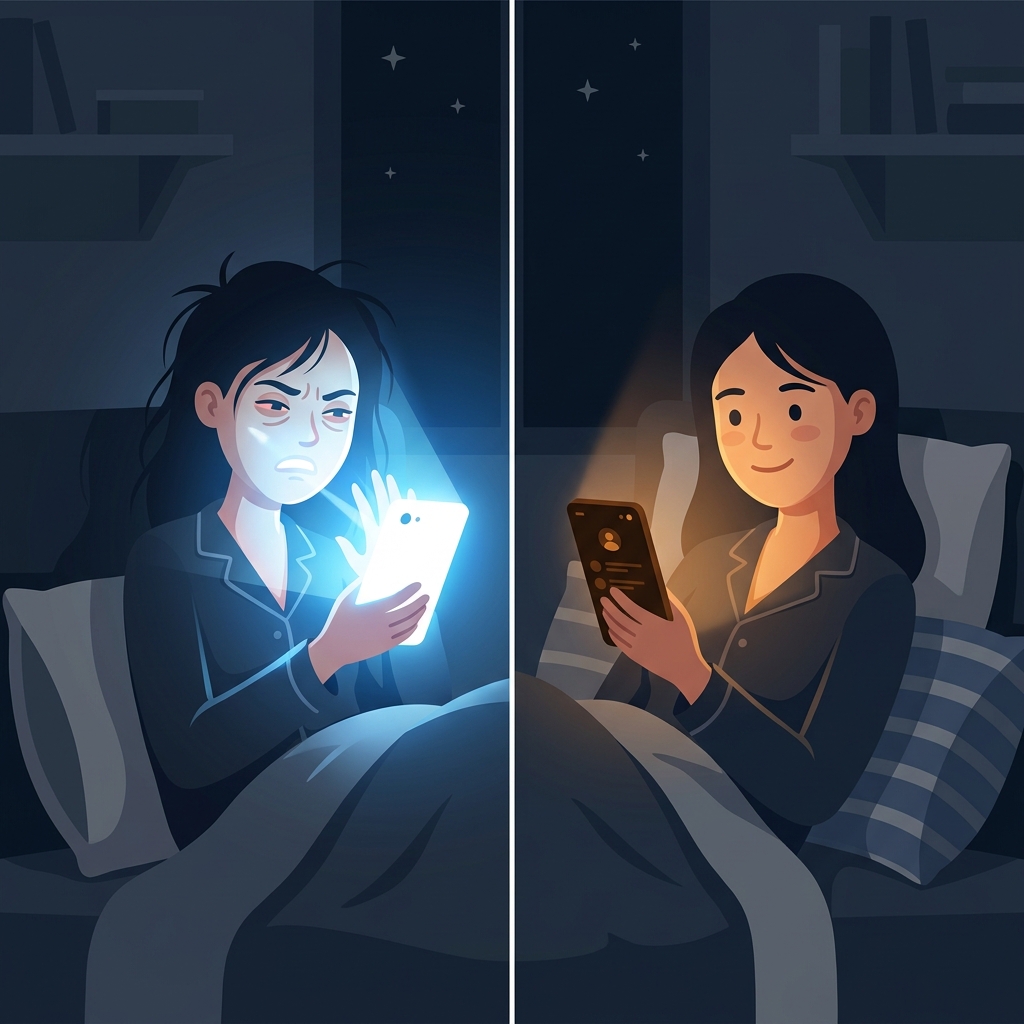
🌙 Break Through System Limits with a "Screen Dimmer" App
If you are not satisfied with the built-in brightness settings or want a smarter way to protect your eye health, our free Android app, "Screen Dimmer", is the perfect solution.
By overlaying a custom, ultra-thin, semi-transparent black filter on top of your screen, "Screen Dimmer" safely achieves extreme dimness (ultra-low brightness) that goes far beyond physical system limits.
📊 Comparison: Built-in Feature vs. "Screen Dimmer" App
| Feature | Android Built-in "Extra Dim" | Screen Dimmer (Our App) |
|---|---|---|
| Minimum Brightness Limit | Limited by device-specific system restrictions | Adjustable down to 0% (almost pitch black) |
| Auto-Timer Feature | None (manual toggle only) | Equipped with a timer to automatically turn ON/OFF at scheduled times |
| Status Bar & Navigation Bar Protection | Not supported on some devices | Fully supported across every corner of the screen |
| Widgets & Quick Controls | Quick Settings panel only | Supports widgets, notification panel, and Quick Settings |
| Battery Consumption | Standard | Ultra-lightweight design. Incredible battery-saving effect on OLED screens |
With "Screen Dimmer," you can use your phone with eye-friendly brightness even in a pitch-black bedroom without disturbing your sleeping partner. It is also incredibly useful for checking urgent messages in a dark car at night or in the corner of a movie theater.
Download "Screen Dimmer" today and experience the comfort of a truly dimmed screen.
❓ Frequently Asked Questions (FAQ) about Screen Brightness
Q. Does dimming the screen to the absolute limit increase battery consumption?
A. No, in fact, it significantly helps save battery. Especially on OLED (organic EL) displays, which are common in many modern smartphones, darker pixels emit less light, resulting in massive power savings. Since our app is designed to be extremely lightweight, its own power consumption is virtually zero.
Q. Sometimes the app's filter turns off automatically. How can I fix this?
A. This is caused by "background restrictions" enforced by certain Android devices. On devices from manufacturers like Samsung or Xiaomi, the OS's proprietary power-saving features may force background apps to close. You can completely prevent the filter from turning off by going to the app's help section or your device settings and setting the app's battery usage to "Unrestricted" (turn off battery optimization).
Q. Will taking a screenshot result in a completely black image?
A. No, your screenshots will look perfectly normal. "Screen Dimmer" features a smart function that automatically and temporarily bypasses the filter for a split second when a screenshot is taken. As a result, your captured images will not be affected by the filter's darkness and will be saved beautifully at standard brightness.